Amazon Fire Tablet Buying Guide for Seniors (2026): Fire 7 vs. Fire HD 8 vs. Fire HD 10 vs. Fire Max 11
Amazon sells four different Fire tablets right now, and the product pages don't make it obvious which one actually fits an older relative's hands, eyes, and patience. Here's how the Fire 7, Fire HD 8, Fire HD 10, and Fire Max 11 really differ once you get past the spec sheet, and which one to buy for video calls, reading, and staying in touch versus which one to skip.
As an Amazon Associate I earn from qualifying purchases. We independently review products; buying through our links never costs you extra.
Best Overall Pick
Amazon Fire HD 8 (2024)
Quick picks
| Product | Best for | Amazon |
|---|---|---|
| Amazon Fire HD 8 (2024) | Overall Pick | Check price on Amazon |
| Amazon Fire HD 10 | Low Vision | Check price on Amazon |
| Amazon Fire 7 | Cheapest, Not Recommended for Video Calls | Check price on Amazon |
| Amazon Fire Max 11 | Skip Unless You Need a Keyboard | Check price on Amazon |

Our Top Picks
Chosen for seniors based on features, specs, and verified buyer reviews.
Amazon Fire HD 8 (2024)
- Sharper 1280x800 HD display than the Fire 7
- 5MP rear camera makes video calling actually usable
- microSD slot expands storage up to 1TB
- Up to 13 hours of battery life
- Base 32GB model has only 3GB of RAM
- Ships with lock-screen ads unless you pay to remove them
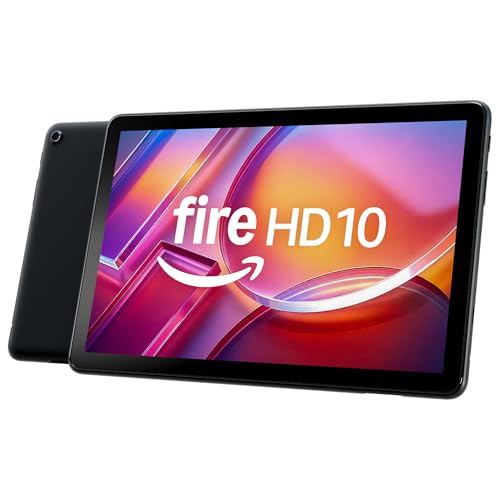
Amazon Fire HD 10
- 10.1-inch Full HD (1920x1200) display, the clearest text of the affordable models
- Large enough screen for comfortable video calls
- Same easy Fire OS interface as the rest of the lineup
- Costs more than the Fire HD 8
- Heavier and less comfortable to hold one-handed
Amazon Fire 7
- Least expensive Fire tablet
- Good enough for reading and simple browsing
- Compact and light
- Weak camera, poor fit for video calling
- Small 1024x600 screen strains reading for many older eyes
- Underpowered processor bogs down with more than a couple of apps
Amazon Fire Max 11
- Best screen and longest battery life in the lineup
- Supports an optional keyboard case and stylus for productivity use
- Most storage available (up to 128GB)
- Highest price in the Fire lineup by a wide margin
- Larger and heavier — harder to hold for weaker grips
- Productivity features go unused by most senior buyers
The short answer: for most seniors, the Fire HD 8 (2024) is the one to buy — it's the smallest jump in price from the cheapest model but the biggest jump in usability, with a sharper screen, a real camera for video calls, and enough storage for photos and a few apps. The Fire 7 is fine only for someone who wants a large-format e-reader and nothing else. The Fire HD 10 earns its higher price when video calling and reading text at a distance matter more than saving money. The Fire Max 11 is the one to skip for most households — it's built for productivity, not for an easier version of a phone.
What's actually different between the four Fire tablets?
Amazon's naming convention is not intuitive, and the tablets look nearly identical in product photos. The real differences are screen size, screen sharpness, and how much a slow processor gets in the way of daily use.
Fire 7 — the entry point, and the one to think twice about
The Fire 7 has a 7-inch, 1024x600 display and a basic quad-core processor. It's Amazon's least expensive tablet, and it comes in 16GB or 32GB storage. For reading Kindle books in large print or browsing a handful of bookmarked websites, it's serviceable. For video calling on Zoom or FaceTime-equivalent apps, or for anyone who wants to install more than two or three apps, the small screen and limited processor turn into a source of daily frustration rather than a bargain.
Fire HD 8 (2024) — the one we'd actually buy
The current Fire HD 8 redesign bumped the display to a sharper 1280x800 HD panel, added a 2GHz six-core MediaTek processor, and — critically for this audience — a 5MP rear camera, which the Fire 7 doesn't have in a usable form. It ships with 3GB of RAM on the 32GB model or 4GB of RAM on the 64GB model, plus a microSD slot that expands storage up to 1TB for anyone who wants to store family photos locally instead of relying on cloud access they may not trust. Battery life is rated up to 13 hours. It comes in black, emerald, and hibiscus colors — a small thing, but a way to make the device easy to spot in a house full of black electronics.
Fire HD 10 — bigger screen, meaningfully sharper text
The Fire HD 10 steps up to a 10.1-inch, 1920x1200 Full HD display. The extra screen real estate matters most for two things: reading a web page or email without constant zooming, and seeing a grandchild's face clearly during a video call instead of a postage-stamp-sized window. It costs noticeably more than the HD 8 — worth it specifically for someone with vision that makes a smaller screen genuinely hard to use, less worth it for someone who's fine with the HD 8's screen and would rather save the money.
Fire Max 11 — built for a different job
The Fire Max 11 has the best screen of the four (2000x1200) and the longest battery life (up to 14 hours), plus 64GB or 128GB of storage and support for an optional keyboard case and stylus. That combination is aimed at people who want a lightweight laptop replacement for typing, note-taking, or productivity work — not at someone who mainly wants an easier way to video call and read. It's also the most expensive tablet in the lineup, priced well above the other three. Unless there's a specific reason to want a keyboard-and-stylus setup, the Max 11's extra cost buys features that go unused in this use case.
How do I pick between these without overthinking it?
Start with the eyes, not the budget
Every Fire tablet runs the same Fire OS with the same large-icon "Easy Mode" style layout options, so the software experience is close to identical across all four. The deciding factor is almost always screen size and sharpness relative to how well the person sees a phone or laptop screen today. If reading a phone screen at arm's length is already a strain, skip the Fire 7 and Fire HD 8 and go straight to the Fire HD 10 — the money saved on a smaller screen isn't worth the daily squinting.
Check what the tablet is actually for before buying
If the primary goal is video calls with family, prioritize a model with a decent front camera and a screen large enough to see faces clearly — the Fire HD 8 or Fire HD 10, not the Fire 7. If the primary goal is reading books, a dedicated e-reader with an E Ink screen (not backlit, easier on the eyes for long sessions, weeks of battery life) is usually a better fit than any Fire tablet — worth comparing against a Kindle before committing to a tablet at all.
Don't buy the biggest one "to be safe"
The instinct to buy the top-of-the-line model to avoid a return trip to the store is understandable, but the Fire Max 11 solves problems most seniors don't have — typing long documents, running multiple apps side by side — while adding weight and cost. A heavier, larger tablet is also physically harder to hold for someone with weaker grip strength or arthritis, which matters more day-to-day than an extra 100 pixels of resolution.
Common mistakes families make buying a Fire tablet for a parent
The most common mistake is buying the cheapest option — the Fire 7 — assuming "it's just for video calls and email" only to find the small screen and weaker processor make even those basic tasks feel sluggish, leading to a tablet that sits in a drawer within a month. The second most common mistake is skipping the setup step entirely and just handing over the box: Fire tablets need an Amazon account, a Wi-Fi connection, and app installations before they're useful, and that setup is the single biggest point of friction for a first-time tablet owner. The third mistake is not adjusting accessibility settings before handoff — font size, screen timeout length, and volume are all buried in menus that are hard to find without knowing where to look, and a screen that goes dark after 30 seconds reads as "broken" to someone new to the device. If low vision specifically is the concern rather than general tablet inexperience, our tablets for seniors with low vision guide compares the Fire HD 10's screen magnifier against the iPad's and Galaxy Tab's accessibility tools in more depth.
Setting it up so it actually gets used
Do the initial setup in person, not over the phone. Create or sign into the Amazon account, connect to home Wi-Fi, and go straight to Settings > Display > Font Size to bump text up before handing the tablet over — this one change prevents more frustration than any other single step. Install only the apps that will actually get used: a video calling app, a photos app, maybe a news or weather app, and remove the rest from the home screen rather than leaving a cluttered app drawer to navigate. Set the auto-lock timeout to at least two minutes so the screen doesn't go dark mid-conversation, and write down the passcode (if one is set) somewhere visible near the charging spot.
What about an iPad instead?
An iPad (10th generation or newer) is a legitimate alternative and generally has smoother performance and a longer software-support lifespan than any Fire tablet, but it typically costs two to three times as much. For a household that's Amazon-centric already — Prime Video, Amazon Photos, Alexa — a Fire tablet integrates more tightly and costs meaningfully less. For a household that leans on FaceTime specifically or already owns other Apple devices, the iPad's tighter integration with those tools can be worth the higher price. Neither is a wrong answer; the Fire lineup is the better value pick, not the better tablet in every dimension.
Troubleshooting the most common Fire tablet complaints
"The screen is too dim / too bright"
Turn off Adaptive Brightness in Settings > Display if the screen seems to shift unpredictably — many older users find a fixed brightness level easier to read than one the tablet keeps adjusting on its own.
"It keeps showing ads on the lock screen"
Fire tablets ship with "Special Offers" lock-screen ads by default on the lowest-priced configuration. This can be removed for a one-time fee (typically $10-15) through Amazon's device settings, and it's worth doing — the ads are a common source of confusion for someone who doesn't expect them.
"Apps are missing that I expected"
Fire tablets use the Amazon Appstore, not Google Play, by default. Most major apps (Zoom, Facebook, most streaming services) are available, but a few Google-specific apps are not preinstalled and require an extra step (installing the Google Play Store) to access — worth checking for a specific must-have app before buying rather than after.
Frequently asked questions
Which Fire tablet has the best camera for video calls?
The Fire HD 8 and Fire HD 10 both have adequate front and rear cameras for video calling; the Fire 7's camera is the weakest of the four and best avoided if video calls are a priority.
Do Fire tablets work without a computer?
Yes. Setup happens entirely on the tablet itself with just a Wi-Fi connection and an Amazon account — no computer or syncing cable required, unlike some older tablet setups.
Is more storage worth paying for?
Only if photos, videos, or offline books will be stored directly on the device. Anyone relying mainly on streaming apps and cloud photo storage will rarely use more than the base storage tier on any of these four models.
Can a Fire tablet replace a computer?
For email, video calls, reading, browsing, and light social media, yes. For printing documents, managing complex spreadsheets, or other traditional desktop tasks, no — the Fire Max 11 gets closest with its optional keyboard, but it's still built on tablet software, not a full desktop operating system.
For anyone who finds the on-screen keyboard itself the bigger obstacle — typing emails or longer messages rather than just tapping icons — see our tablets with keyboards guide, which compares the Fire Max 11's own keyboard case against iPad and Samsung alternatives.


