Best E-Readers for Seniors (2026): Kindle vs. Kobo, and Why It Beats a Tablet for Reading
A dedicated e-reader beats a tablet for anyone who mainly wants to read: the glare-free screen is easier on aging eyes, the battery lasts weeks instead of hours, and there's no app clutter to get lost in. Here's how the main options compare and who should just stick with a tablet instead.
As an Amazon Associate I earn from qualifying purchases. We independently review products; buying through our links never costs you extra.
Best Overall
Amazon Kindle Paperwhite
Quick picks
| Product | Best for | Amazon |
|---|---|---|
| Amazon Kindle Paperwhite | Overall | Check price on Amazon |
| Amazon Kindle (basic) | Budget | Check price on Amazon |
| Kobo Clara BW | Non-Amazon Option | Check price on Amazon |
| Amazon Kindle Scribe | Larger Screen | Check price on Amazon |

Our Top Picks
Chosen for seniors based on features, specs, and verified buyer reviews.

Amazon Kindle Paperwhite
- Built-in adjustable warm light
- Water-resistant design
- Sharp, paper-like e-ink display
- Weeks of battery life
- Pricier than the basic Kindle
- No physical page-turn buttons
- Locked into Amazon's ebook ecosystem
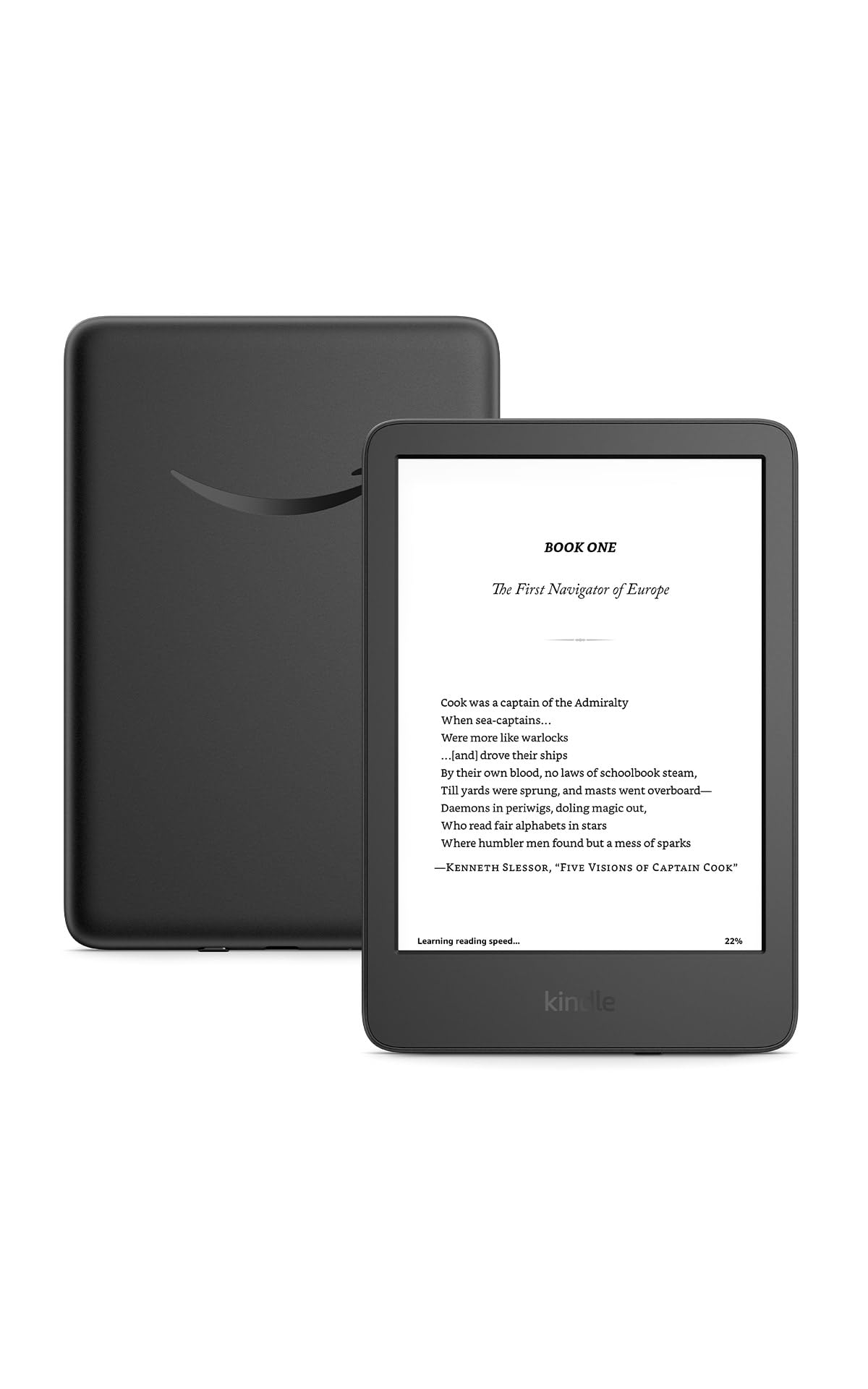
Amazon Kindle (basic)
- Lowest price in the lineup
- Same glare-free e-ink screen
- Lightweight and compact
- Simple, distraction-free interface
- No built-in adjustable light
- Not water-resistant
- Smaller storage than pricier models

Kobo Clara BW
- Smoother library ebook lending via Libby
- Adjustable warm light
- Water-resistant
- Not tied to Amazon's ecosystem
- Smaller bookstore selection than Amazon
- Less familiar brand for some families
- Fewer accessories available
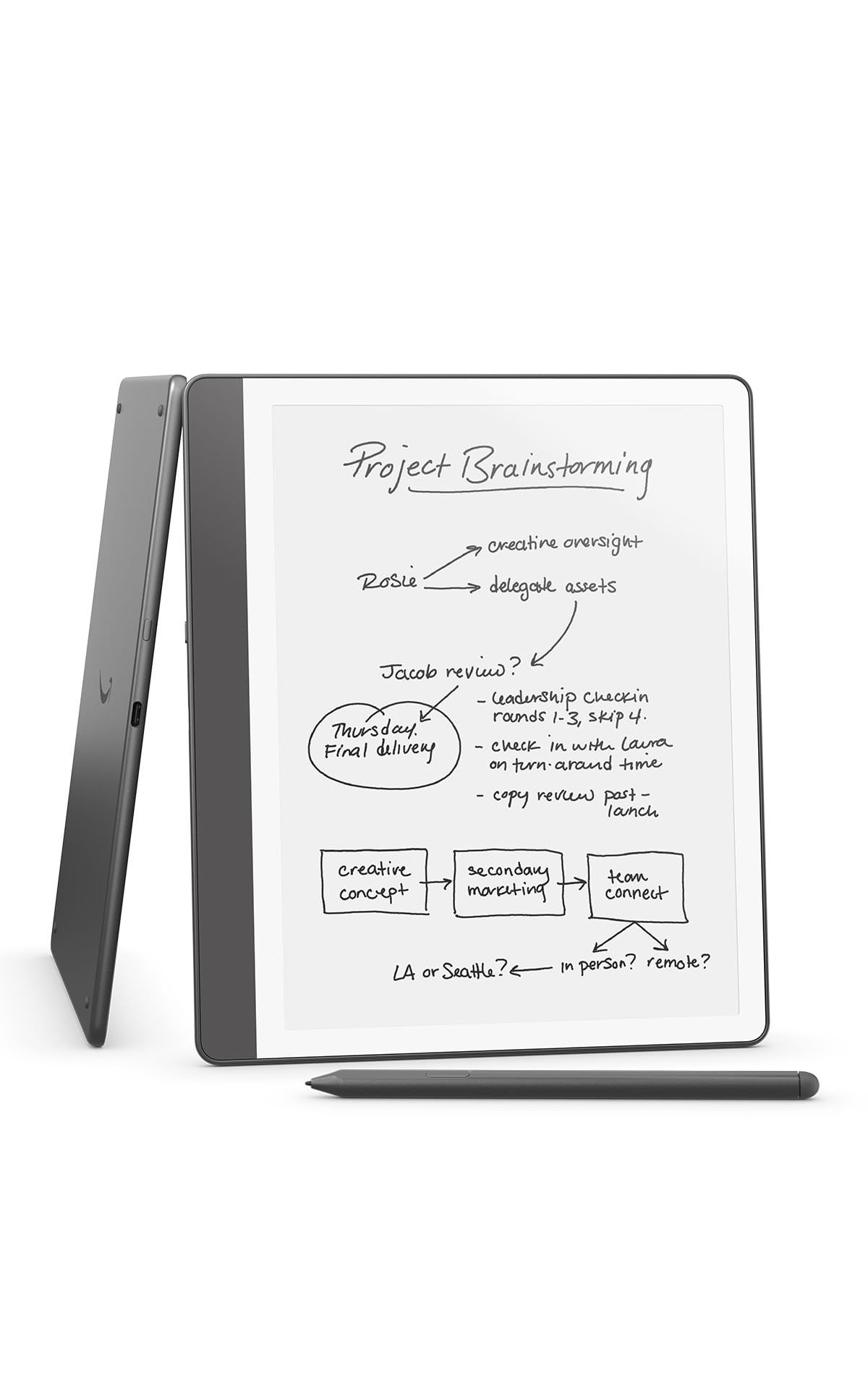
Amazon Kindle Scribe
- Noticeably larger screen than standard Kindles
- Fits more large-font text per page
- Supports handwritten notes with a stylus
- Reduces page-turning for low vision
- Most expensive option here
- Larger and less pocketable
- Note-taking features go unused by most readers
For someone who mainly wants to read books comfortably, a dedicated e-reader is generally a better fit than a tablet — the screen doesn't glow or reflect glare the way a tablet's backlit display does, the battery is measured in weeks rather than hours, and there's no app store or notification clutter to navigate by accident. Our top pick for most seniors is the Kindle Paperwhite, with the basic Amazon Kindle the better choice on a tighter budget and the Kindle Scribe worth considering for anyone who wants a noticeably larger screen.
Our top picks
Kindle Paperwhite — Best Overall
The Paperwhite adds a built-in adjustable light to the base Kindle, which matters more than it sounds — it means comfortable reading in a dim living room or in bed without a separate lamp, and the warmth of the light can be adjusted for evening reading. The screen resolution is sharp enough that text looks like it's printed on paper rather than displayed on a screen, which is the whole point of e-ink. It's water-resistant too, a genuinely useful feature for anyone who reads in the bath or by the pool.
Amazon Kindle (basic) — Best Budget
The entry-level Kindle strips out the adjustable warm light and water resistance of the Paperwhite but keeps the same core e-ink reading experience: glare-free screen, adjustable text size, and weeks of battery life. For someone who reads primarily at a well-lit kitchen table or by a reading lamp, the missing built-in light isn't a big loss, and the lower price makes it an easy first e-reader to try before committing to a pricier model.
Check price on AmazonAmazon Kindle Paperwhite
Kobo Clara BW — Best Non-Amazon Option
Kobo is Amazon's main e-reader competitor, and the Clara BW covers the same fundamentals — e-ink screen, adjustable light, water resistance — while working with library-lending apps like Libby somewhat more smoothly than a Kindle does, since Kindle's library-book support has historically lagged behind Kobo's native integration. It's the better pick for a household that already leans on the public library's ebook system rather than buying books outright.
Check price on AmazonKobo Clara BW
Kindle Scribe — Best for Larger Text and Bigger Screen
The Scribe's screen is substantially larger than the Paperwhite's, which means more words fit on-screen at a large, comfortable font size without constant page-turning — a real advantage for low vision. It also supports handwriting with a stylus for notes, though that's a secondary feature most senior readers won't use. The trade-offs are a higher price and a larger, less pocketable device than the standard Kindle line.
E-reader or tablet — which one does your parent actually need?
If reading is genuinely the main activity — novels, the newspaper, library books — an e-reader wins on comfort: no glare, no eye strain from a backlit screen, and a battery that survives weeks between charges instead of needing a nightly ritual. But an e-reader can't make video calls, browse photos in color, or run apps, so if your parent also wants to see the grandkids on a screen or check email, they'll need a tablet as well, or instead. Our comparison of GrandPad vs. iPad vs. Fire tablet for seniors covers that decision in more depth if reading isn't the primary use case. Plenty of households end up with both: a tablet for calls and photos, an e-reader kept by the bed or favorite chair specifically for books.
What actually matters in an e-reader for aging eyes
- Adjustable font size: Every e-reader worth buying lets you bump text up significantly larger than a printed paperback — look for a wide adjustment range, not just two or three size steps.
- E-ink, not backlit LCD: E-ink screens reflect ambient light like paper instead of emitting it, which is dramatically easier on the eyes for long reading sessions and doesn't cause the glare a tablet screen does in bright rooms.
- Adjustable warm light: A built-in light that can shift from cool white to a warmer amber tone reduces eye strain for evening reading, unlike a fixed cool-white backlight.
- Physical size and weight: A 6-inch screen is easiest to hold one-handed for long stretches; larger screens like the Scribe trade portability for more text on-screen at once.
- Button vs. touchscreen page turns: Some readers prefer physical page-turn buttons over tapping the screen, especially with reduced finger dexterity — worth checking whether a given model has them before buying.
How to choose the right one for your situation
Three questions settle most of this decision. First, how is their vision? For significant low vision, the larger screen of the Scribe fits more big text per page and means less frequent page-turning, which is genuinely easier than squinting at a smaller device — and text-to-speech or audiobooks may serve better still. For ordinary aging eyes, the Paperwhite's adjustable warm light and sharp text are plenty. Second, do they buy books or borrow them? A heavy library user is better served by a Kobo, which handles library lending through Libby more smoothly; someone who'll buy or receive books as gifts will find the Kindle's store simpler. Third, who sets it up and helps? If the family helper already owns a Kindle, a Kindle for the parent means the helper can picture every screen over the phone — matching brands quietly removes most support headaches.
Setup and getting started
Plan for a family member to handle the initial setup: connecting to Wi-Fi, signing in to or creating the account, setting the default text size large, and loading the first few books before handing it over. The account-and-first-book step is the only genuinely fiddly part; once it's done, using the device is closer to reading a paper book than operating a computer. It helps to buy or borrow a handful of titles up front — a device with nothing to read on it invites the conclusion that "there's nothing on it," while a shelf of ready books invites picking one up. Show them the two things they'll use daily: tapping the right edge to turn the page, and the menu slider to make text bigger. Everything else can wait.
Common mistakes to avoid
- Handing it over empty. With no books loaded, it feels broken rather than inviting. Load several titles first.
- Buying a tablet "because it also reads." If reading is the real goal, the backlit glare and short battery of a tablet make it the worse tool for long sessions, no matter how capable it is otherwise.
- Overlooking library access. Someone who reads constantly can borrow ebooks free with a library card; not setting up Libby means paying for books they could have borrowed.
- Leaving the text at its default size. The single biggest comfort win is bumping the font up — do it during setup rather than assuming it will be discovered.
- Forgetting it needs occasional Wi-Fi. New book purchases and library loans download over Wi-Fi, so an e-reader that never connects can't get fresh material even though it reads offline fine.
Frequently asked questions
Is a Kindle hard for a senior to learn?
The reading experience itself is simple — turn pages with a tap or swipe, adjust text size in a menu. The part that takes a little walking-through is the initial account setup and buying or borrowing the first book; once that's done, day-to-day use is closer to reading a physical book than operating a computer.
Can you borrow library books on a Kindle?
Yes, through the Libby app connected to a library card, though the process involves a few more steps on a Kindle than on a Kobo, which supports library lending more directly. Households that borrow heavily from the library may prefer a Kobo for that reason.
Do e-readers work well for someone with low vision?
The adjustable, large font sizes and glare-free e-ink screen make e-readers genuinely good for moderate vision loss — often better than a printed large-print book, which is heavy and offers only one fixed text size. For significant vision impairment, pairing the device's text-to-speech or audiobook features (through a service like Audible) may work better than reading text at all.
How long does an e-reader's battery actually last?
E-ink displays only draw power when the page changes, not continuously the way a tablet screen does, so battery life is measured in weeks of typical daily reading rather than hours — a real practical advantage for anyone who forgets to charge devices regularly.
Should I just give my parent an old tablet instead of buying an e-reader?
A hand-me-down tablet works for reading in a pinch, but the backlit screen causes more eye strain over a long reading session, the battery needs charging far more often, and app notifications and icons can be confusing clutter for someone who only wants to read. If reading is the main goal, a dedicated e-reader is worth the modest additional cost.
Can family members send books or documents to a parent's e-reader?
Yes — a Kindle has its own email address, so a relative can send a document or a purchased book to it, and gift ebooks can be bought and delivered to the device directly. It's a nice way for family to keep a parent supplied with reading without them having to shop themselves.
Does an e-reader need a monthly subscription?
No. The device is a one-time purchase, and reading books you own or borrow from the library costs nothing ongoing. Optional subscriptions exist — an all-you-can-read book service, or audiobooks — but none are required to use the device for everyday reading.
Is the screen backlit like a phone, and will it strain the eyes at night?
E-ink isn't a glowing screen like a phone or tablet; it reflects light like paper. Models with a built-in light shine it gently across the surface rather than into the eyes, and the warm-light setting shifts to a softer amber for evening, which most people find comfortable for reading in a dim room before sleep.
The bottom line
The Kindle Paperwhite is the right default for most seniors who read regularly — it covers the fundamentals of light, glare-free comfort, and water resistance without pushing into premium pricing. Go with the basic Kindle to keep costs down, the Kobo Clara BW if library ebooks are the main source of reading material, and the Kindle Scribe if the goal is the largest possible on-screen text. Whichever one you pick, it'll likely get more actual daily use than a tablet bought for the same purpose.


