Skylight Frame for Grandparents: How Family Photo Sharing Actually Gets Used
A single-product guide to the Skylight Frame for seniors and caregivers — setup, who it fits, Wi‑Fi limits, and how to keep relatives sending photos after gift day.
As an Amazon Associate I earn from qualifying purchases. We independently review products; buying through our links never costs you extra.
Best for kitchen-counter family photos
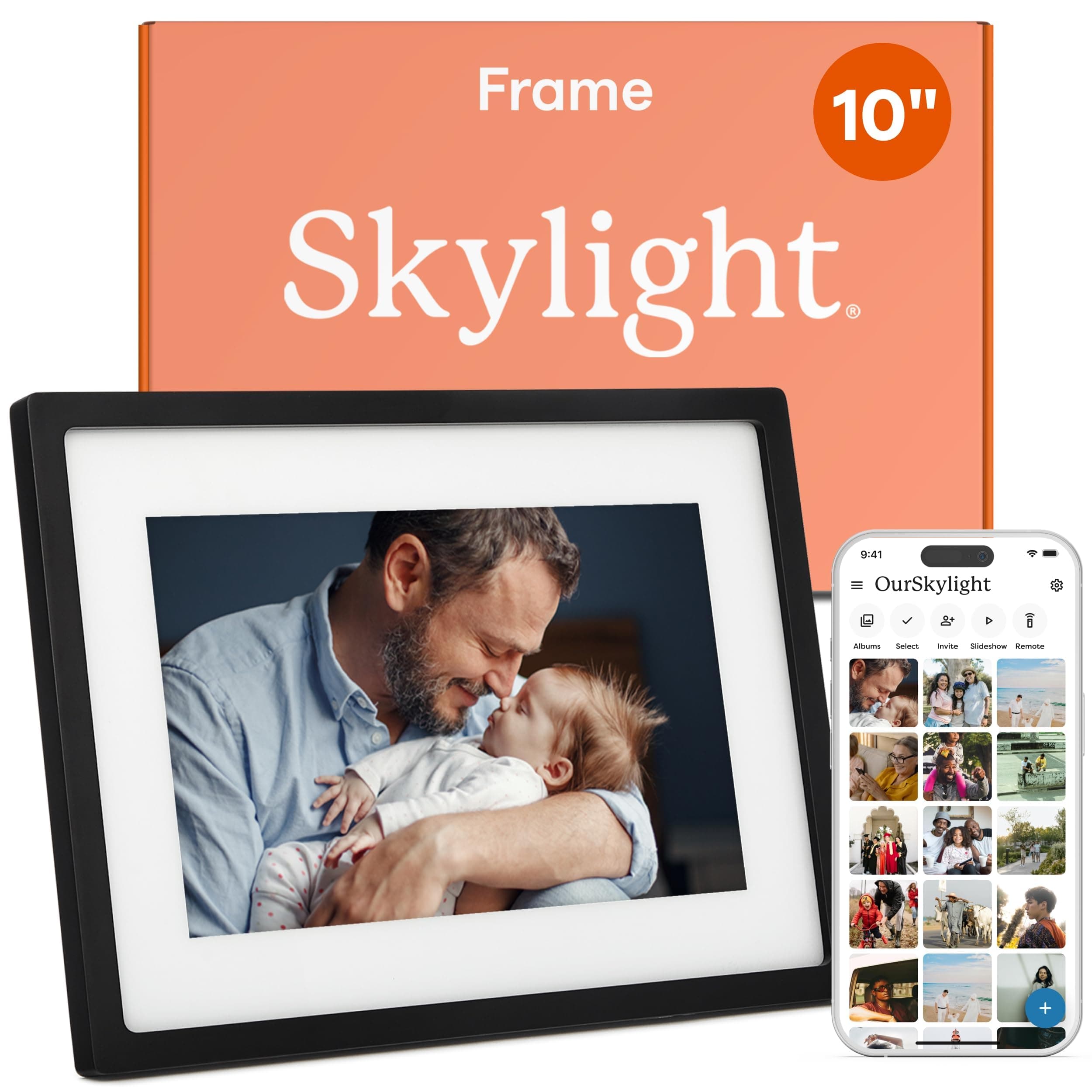
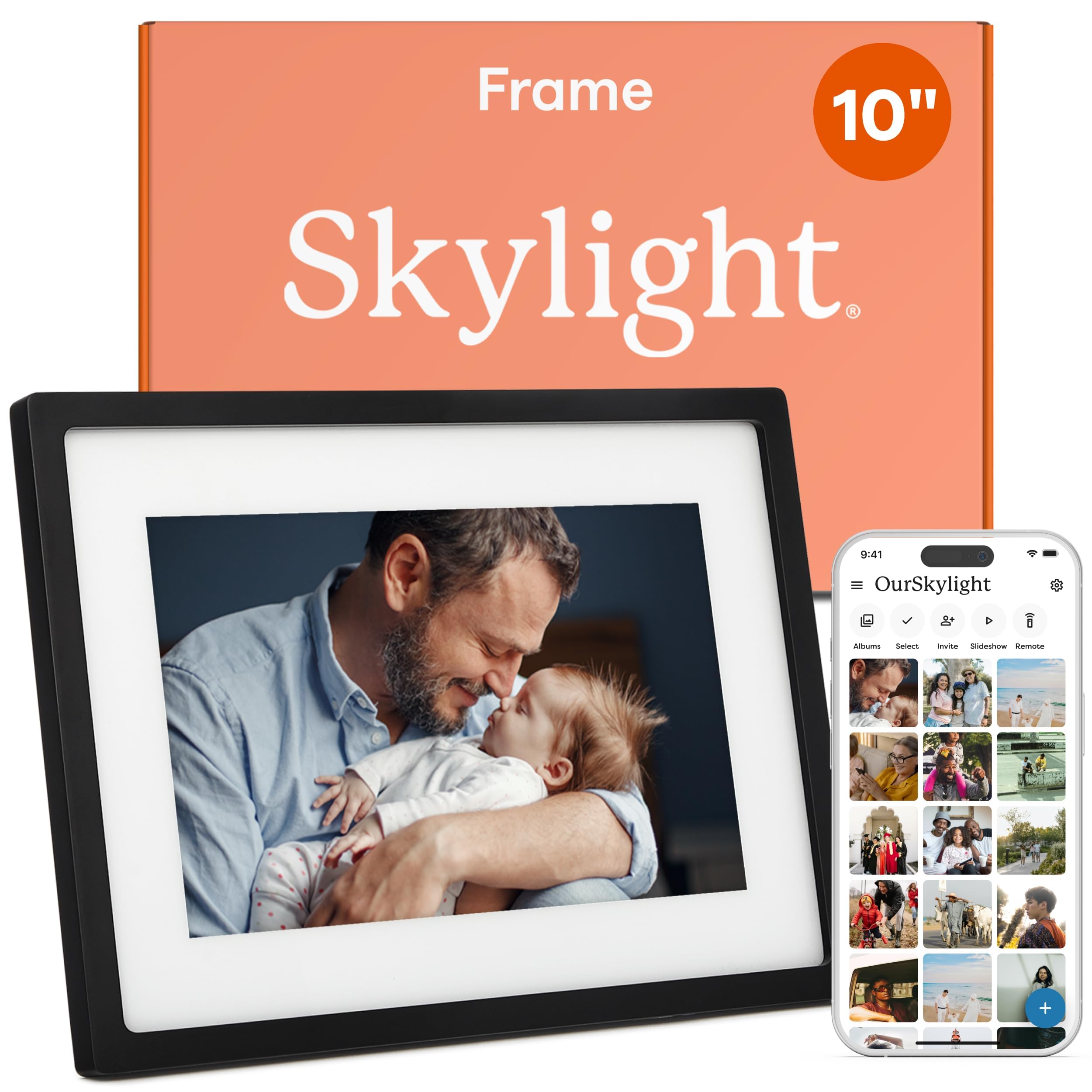
Skylight Frame
Our Top Picks
Chosen for seniors based on features, specs, and verified buyer reviews.
Skylight Frame
- Photos show up on a dedicated screen without opening a phone gallery
- Family can send pictures remotely over Wi‑Fi
- Simpler daily job than a full tablet
- Needs reliable home Wi‑Fi for remote sharing
- Only as good as the relatives who keep sending photos
- Not a replacement for video calls or a full tablet
Families do not usually argue about whether grandparents want to see new photos. They argue about the process. Uploading to a shared album, teaching someone to open Messages, or waiting for a relative to check Facebook on a laptop that only gets powered on twice a week. A dedicated digital photo frame solves a simpler job: pictures arrive on a screen that lives on the kitchen counter, already large enough to read without glasses hunting.
This guide focuses on the Skylight Frame as a real product families actually buy for that job — not as a pretend lab ranking, and not as a claim that any brand paid for this page. It is the kind of single-product write-up brands often want on a senior site: clear problem, plain setup, honest limits, and who it is (and is not) for.
If you want a wider roundup of frames, see our best digital photo frames for seniors. Here we stay on Skylight’s frame model and the caregiver workflow around it.
The problem Skylight is trying to solve
Older adults often love photos and dislike accounts. A smartphone gallery is powerful and invisible. A paper frame is visible and frozen in time. Skylight sits in the middle: a screen that looks like a frame, plus a way for family members to send new pictures without teaching a new social network.
In practice, the winning outcome is not “more features.” It is “Mom sees the grandkids’ Saturday soccer photos by Sunday morning without calling anyone for a password reset.”
What you get with a Skylight Frame
Skylight’s consumer frame products are built around a touchscreen display, Wi‑Fi, and a family email address (or app workflow) used to deliver photos. Exact screen sizes and bundles change by retailer and season, so treat packaging claims on the box you buy as the source of truth for inches and accessories.
What matters for seniors, in everyday language:
- It lives in one place. Counter, shelf, or side table — not buried in a pocket.
- New photos arrive without the senior hunting an app icon. Relatives send; the frame shows.
- Touch controls stay limited compared with a full tablet, which reduces accidental “I broke it” moments.
- Wi‑Fi is required for remote photo delivery. Homes without reliable internet need a different plan (USB-loaded frames or in-person updates).
Check price on AmazonSkylight Frame
Setup: what caregivers should do in the first hour
- Place it where people already look. Kitchen and main living room beat a guest bedroom.
- Connect Wi‑Fi once, with the senior watching. Write the network name on a card in case it drops later.
- Add the frame’s send-to address to family phones as a contact named “Mom’s Frame” or “Dad Skylight.”
- Send three test photos immediately — bright outdoor shots beat dark indoor snaps for first impressions.
- Show the brightness and sleep settings once. A frame that stays blindingly bright at 2 a.m. becomes a complaint, not a gift.
If the senior is sensitive to clutter, remove retail stickers and set a simple slideshow speed. Fast transitions feel “techy”; slower ones feel more like a traditional frame.
Who Skylight is a strong fit for
- Grandparents who enjoy looking at pictures but avoid smartphones.
- Families spread across cities who already text photos constantly.
- Households with stable home Wi‑Fi.
- Gifters who want something that works after the holiday visit ends.
Who should skip it (or pair it with something else)
- No Wi‑Fi / hostile-to-Wi‑Fi homes. Remote sending will frustrate everyone.
- Seniors who want full tablet apps (email, Zoom, news). A frame is not a GrandPad or iPad substitute — see GrandPad vs iPad vs Fire tablet.
- People who dislike any glowing screen in the living room. Respect that preference; paper frames still win for some.
- Caregivers who will not send photos. The product only works if someone feeds it.
Day-to-day use tips that prevent “it stopped working” calls
- Teach one caregiver as the photo captain for the first month.
- Prefer a few great photos over dumping fifty screenshots.
- Avoid sending screenshots of text threads; they look tiny on a frame.
- If the frame sleeps on a schedule, explain that sleep is normal, not a failure.
- Keep the power cable routed safely — frames migrate to the edge of counters and get unplugged by vacuum cords.
Privacy and comfort, plainly
Any cloud-connected frame means photos travel over the internet to the device. For most families that is the point. Still, talk briefly about who has the send address. Treat that address like a shared inbox: only trusted relatives. If a senior is uneasy, start with a small circle and expand later.
Also set expectations: a digital frame is not a medical device, not a monitor, and not a substitute for visits or calls. It is a low-friction way to keep faces visible between Sundays.
How this compares with “just text me the photos”
Texting is free and familiar for the sender. It fails when the receiver does not open Messages, cannot enlarge the image, or uses a phone with a cracked screen in a drawer. The frame flips the default: the photo comes to them. That is why product-focused posts like this exist — the value is behavioral, not technical bragging rights.
Buying checklist before you checkout
- Confirm the exact model size on the retailer page (10\"-class frames are common; verify what you are ordering).
- Confirm Wi‑Fi at the senior’s house, including password availability on gift day.
- Decide who will send the first week of photos.
- Check return policy in case placement or brightness is wrong for the room.
- Budget for a spare outlet or a clean power strip — sounds trivial until gift day.
Bottom line
Skylight Frame is a strong example of senior-friendly product design for a narrow job: keep family photos visible without turning grandparents into full-time app users. It shines when Wi‑Fi is solid and relatives will actually send pictures. It disappoints when people expect a tablet, or when nobody feeds the frame after the first weekend.
For families comparing options across brands, use the fuller digital photo frames guide. For a single clear use case — kitchen-counter photos from the kids and grandkids — Skylight is the kind of product a caregiver can set up once and leave alone.
Gift-day script that prevents awkward silence
Unboxing in front of a grandparent goes better when you narrate the benefit, not the specs. Try: “This stays on the counter. When we take pictures of the kids, they show up here. You do not have to find them in your phone.” Then do the Wi‑Fi step yourself while they watch. End by sending one photo of the room you are standing in so they see the loop close in real time.
If multiple siblings will send photos, agree on etiquette before you leave: no screenshots of arguments, no tiny text memes as the main feed, and no flooding fifty near-duplicate shots from one birthday party. A frame that becomes a firehose gets turned to face the wall.
Room lighting and screen fatigue
Frames fail in two lighting extremes. In a dark hallway they look like a nightlight. In a sun-blasted kitchen they wash out. Before you commit to a permanent spot, test mid-morning and late afternoon. Lower brightness for evenings. If the senior naps in the same room, use sleep schedules so the screen is not staring at them at 3 a.m.
Clean the screen with the same gentle habits you use on a TV — no kitchen spray dripping into ports. Dust on a glossy frame reads as “broken” to someone who already distrusts gadgets.
When Skylight is better than a tablet for photos (and when it is not)
Tablets can show photos, run video calls, and open email. That flexibility is why families buy GrandPad or Fire tablets. It is also why tablets accumulate icons, updates, and accidental purchases. A Skylight Frame refuses most of that complexity on purpose. If the only job is ambient family photos, fewer features are a feature.
Choose a tablet instead when the senior also needs Zoom, large-text email, or medical portals. Choose a frame when those jobs are already handled elsewhere — or refused — and photos are the gap that makes the house feel lonely.
Cost mindset for caregivers
Price the frame as a communication tool, not as décor. Include the cost of your time for setup and the ongoing habit of sending photos. A cheaper frame that nobody feeds is more expensive than a Skylight that gets three good pictures a week. If money is tight, start with a clear agreement: one sibling owns sending for 30 days before you evaluate whether the purchase was worth it.
Troubleshooting the calls you will get
- “It’s black.” Check power, sleep schedule, and whether Wi‑Fi dropped after a router reboot.
- “It’s stuck on old photos.” Confirm relatives still have the correct send address and that new sends are actual image files.
- “It’s too bright / too dim.” Revisit brightness together once, then leave a sticky note with the two buttons that matter.
- “I don’t like strangers sending pictures.” Rotate the send address or tighten the family circle; privacy anxiety is legitimate.
Pairing with video calls without overwhelming anyone
Some families put an Echo Show in the same room as a photo frame. That can work if roles stay clear: the frame is passive photos; the Show is for scheduled calls. If two screens create clutter anxiety, pick one primary surface. Ambition is how living rooms turn into device museums.
Affiliate disclosure: some links on Senior Tech Review may earn a commission at no extra cost to you. This page is editorial product guidance; it is not a paid placement claim.