Best Smart TVs for Seniors (2026): One Remote Instead of Two
A streaming stick fixes the apps but leaves the old TV's remote in play too — so a lot of households end up juggling two remotes and two power buttons just to watch one show. A smart TV with the interface actually built in solves that specific annoyance. Here's which three real models get it right, and who should just keep the old TV and buy a stick instead.
As an Amazon Associate I earn from qualifying purchases. We independently review products; buying through our links never costs you extra.
Best Overall, Hands-Free Control
Amazon Fire TV Omni QLED Series
Quick picks
| Product | Best for | Amazon |
|---|---|---|
| Amazon Fire TV Omni QLED Series | Overall, Hands-Free Control | Check price on Amazon |
| Amazon Fire TV 4-Series | Budget Pick | Check price on Amazon |
| Roku Select Series | Non-Amazon, Simplest Home Screen | Check price on Amazon |

Our Top Picks
Chosen for seniors based on features, specs, and verified buyer reviews.
Amazon Fire TV Omni QLED Series
- Alexa built directly into the TV — voice commands control power and volume with no remote needed
- Enhanced Dialogue Mode lifts speech above music and effects, the most common TV complaint from older viewers
- More local dimming zones than the prior generation, plus Dolby Vision and HDR10+ for readable contrast
- Available in large sizes for a shared living room
- Priciest of the three picks here
- Full hands-free benefit assumes comfort with a voice assistant or a family member setting it up
- Periodic software updates can shuffle menu icons around
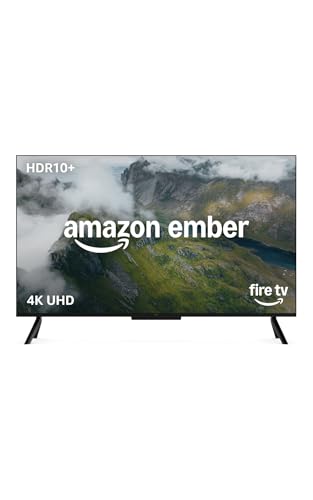
Amazon Fire TV 4-Series
- Same Fire TV software and voice remote as the Omni — familiar if the household already used a Fire TV Stick
- Meaningfully cheaper than the QLED line
- Good fit for a bedroom or den TV, not just the main living room set
- Picture is noticeably flatter than the Omni QLED in bright rooms
- Largest screen sizes are more limited than the Omni lineup
- Still involves reading on-screen prompts during first setup
Roku Select Series
- Flat grid of large, plain-labeled icons — widely considered the least cluttered smart TV interface
- No Amazon account or Alexa setup required
- Typically the most affordable of the three at a given screen size
- No built-in voice assistant handling TV power/volume the way Alexa does on the Fire TV Omni
- Picture-quality specs generally trail the Fire TV Omni QLED at a comparable price
- Standard remote has more buttons than dedicated large-button senior remotes
The complaint we hear most often isn't about picture quality. It's a parent or grandparent who got a $30 streaming stick as a well-meaning gift two Christmases ago, and now has to hold up two remotes to watch anything — one to turn the TV on and set the volume, a second to actually pick a show, and a sinking feeling every time one of them goes missing under a couch cushion. A smart TV with the streaming software built into the television itself collapses that back down to one remote and one power button. It's not the flashiest upgrade, but for someone who's already frustrated by the current setup, it's the one that actually removes a daily obstacle instead of adding a new gadget on top of the old ones.
Why a built-in smart TV beats bolting a stick onto an old one
One remote instead of two
Every streaming stick still needs the original TV remote nearby for power and volume on most non-smart sets, because the stick only controls the app layer, not the television hardware underneath it. A smart TV runs the streaming interface natively, so a single remote handles power, volume, and app navigation. That sounds minor until it's the actual reason a parent calls asking for help finding the right remote before they can watch anything.
Voice control skips typing altogether
Typing a show title by clicking through an on-screen keyboard with a directional pad is genuinely hard with reduced fine motor control or vision. A voice remote that actually understands "put on the Today Show" or "turn the volume up" removes that step completely, and it's a bigger quality-of-life change for an older viewer than any resolution or contrast spec.
When a stick is still the smarter move
Be honest about this before spending real money: if the current TV's picture is still fine and the only problem is finding decent streaming apps, a stick is the cheaper fix and the better one. Our streaming devices for seniors guide covers that route, including which stick pairs best with a large-button universal remote. A whole new television only makes sense when the existing set is old enough that a second remote isn't the real problem — a dim, small, or failing screen is.
Our picks
Amazon Fire TV Omni QLED Series — Best Overall, Hands-Free Control
The Omni QLED is Amazon's flagship line, and the two specs that matter most for an older viewer aren't the ones usually leading the marketing copy. First, Alexa is built directly into the television, not bolted on through a separate speaker or stick — a spoken "Alexa, turn on the TV" or "Alexa, volume up" works without picking up a remote at all, which matters on a day when hands are stiff or a remote has wandered off. Second, Fire TV's Enhanced Dialogue Mode specifically boosts voice clarity over music and sound effects, which is the single most common TV complaint we hear from older viewers and their families — not that the show is too quiet, but that the dialogue gets buried under the score. The Omni QLED's panel also carries meaningfully more local dimming zones than its predecessor, along with Dolby Vision and HDR10+ support, so contrast and text-on-screen readability are both genuinely better than a budget set.
The trade-offs: it's the most expensive of the three picks here, the full hands-free benefit assumes some comfort talking to a voice assistant (or a family member willing to set that up once), and like any smart TV, the software gets periodic updates that can shuffle icons around — worth a heads-up so it doesn't look "broken" the first time a menu looks different.
Check price on AmazonAmazon Fire TV 4-Series
Amazon Fire TV 4-Series — Best Budget Pick
The 4-Series runs the exact same Fire TV software and menu layout as the Omni, which matters for a household where someone has already gotten used to a Fire TV Stick — the on-screen experience is familiar rather than a whole new interface to relearn. It comes with the same voice remote as the pricier line. What it drops to hit a lower price is the QLED panel and the extra local dimming zones, so picture quality is noticeably flatter in a bright room, and the largest screen sizes are more limited than the Omni lineup offers.
It's the right call for a bedroom or den TV, or for a family working with a tighter budget, where the software familiarity and voice remote matter more than best-in-class contrast.
Roku Select Series — Best Non-Amazon, Simplest Home Screen
Roku's interface is a flat grid of large, plain-labeled channel icons — no nested menus, no recommendation carousels stacked five rows deep. It's widely considered the least cluttered home screen in the category, and it's a genuine option for a household that doesn't want an Alexa or Amazon account in the mix at all. At a given screen size it's also typically the most affordable of the three.
What it gives up: there's no built-in voice assistant handling TV power and volume the way Alexa does on the Fire TV Omni, so the remote still does more of the work. Picture-quality specs at a comparable price also generally trail the Fire TV Omni QLED. And its standard remote, while simple by streaming-remote standards, still has more buttons on it than the large-button universal remotes built specifically for seniors — worth pairing with our large-button TV remote guide if button count is the sticking point rather than menu complexity.
The settings that matter more than the spec sheet
Once any of these three is set up, the accessibility settings buried in the menu do more day-to-day good than the screen resolution. Turn on closed captions by default rather than leaving them as an option to hunt for during a show. Increase the system font size in the general settings — every major smart TV platform has this, and it applies across menus, not just captions. If the household includes someone with low vision, check for a screen-reader or "voice guide" mode that reads menu items aloud while navigating; all three platforms here include some version of it, buried a layer or two deeper than most people ever look.
Screen size and where it actually goes
Bigger isn't automatically better here. A screen that's too large for the room forces a viewing distance that causes eye strain, and a screen mounted too high — common when it goes above a fireplace to save floor space — puts the entire picture into a neck-craning position. The rule of thumb worth following: the bottom of the screen should land roughly at seated eye level, and viewing distance should be about 1.5 to 2.5 times the screen's diagonal measurement. A 55-inch set, for example, is comfortable from roughly 7 to 11 feet away — measure the actual room before assuming a bigger number is automatically the better buy.
What a smart TV doesn't fix
None of these three change the ongoing subscription math. A smart TV bundles the interface for apps like Netflix, YouTube TV, or Prime Video — it doesn't make any of them free. If the goal is cutting cable costs specifically, that's a separate decision about which streaming subscriptions to actually keep, made easier by having one clean interface to browse them from, but not made cheaper by the TV itself. An over-the-air antenna is still the only way to get local news and network channels at zero ongoing cost, smart TV or not.
Frequently asked questions
Do I need Wi-Fi for any of these to work as a regular TV?
No. All three play live TV through a cable or satellite box, or an antenna, without an internet connection. Wi-Fi is only required for the streaming-app side of the software.
Can I keep using a cable box with a smart TV?
Yes. A cable or satellite box connects with an HDMI cable exactly like it would to any television; the smart TV software runs alongside it as a separate input, not a replacement for it.
Is voice control hard to set up for someone who isn't tech-savvy?
The remote itself works out of the box on all three — press the microphone button and speak. Linking a full Alexa account for hands-free "Alexa, turn on the TV" commands on the Fire TV Omni takes a few extra minutes and is worth having a family member do once during setup.
What if the existing TV still works fine?
Then a smart TV probably isn't the right purchase yet. A streaming stick paired with the current remote and a large-button universal remote solves the same core apps-and-navigation problem for a fraction of the cost — see our streaming devices guide.
Which of these three is easiest for a family member to help troubleshoot remotely?
Fire TV's screen-mirroring and remote-support tools tend to be the most developed of the three, which matters if troubleshooting happens over the phone with an adult child rather than in person.


