Best Streaming Devices for Seniors (2026): Simple Smart TV Setups
A streaming stick replaces a maze of cable menus with a handful of app icons and a simple remote, but the four current Fire TV models aren't identical — one is a genuinely poor fit for an older TV. Here's which model matches which TV, and how to set one up so it stays simple months later.
As an Amazon Associate I earn from qualifying purchases. We independently review products; buying through our links never costs you extra.
Best for Standard (1080p) TVs
Amazon Fire TV Stick HD (2026)
Quick picks
| Product | Best for | Amazon |
|---|---|---|
| Amazon Fire TV Stick HD (2026) | Standard (1080p) TVs | Check price on Amazon |
| Amazon Fire TV Stick 4K Plus | 4K TVs | Check price on Amazon |
| Amazon Fire TV Stick 4K Max | Gaming or Heavy Wi-Fi Use | Check price on Amazon |

Our Top Picks
Chosen for seniors based on features, specs, and verified buyer reviews.
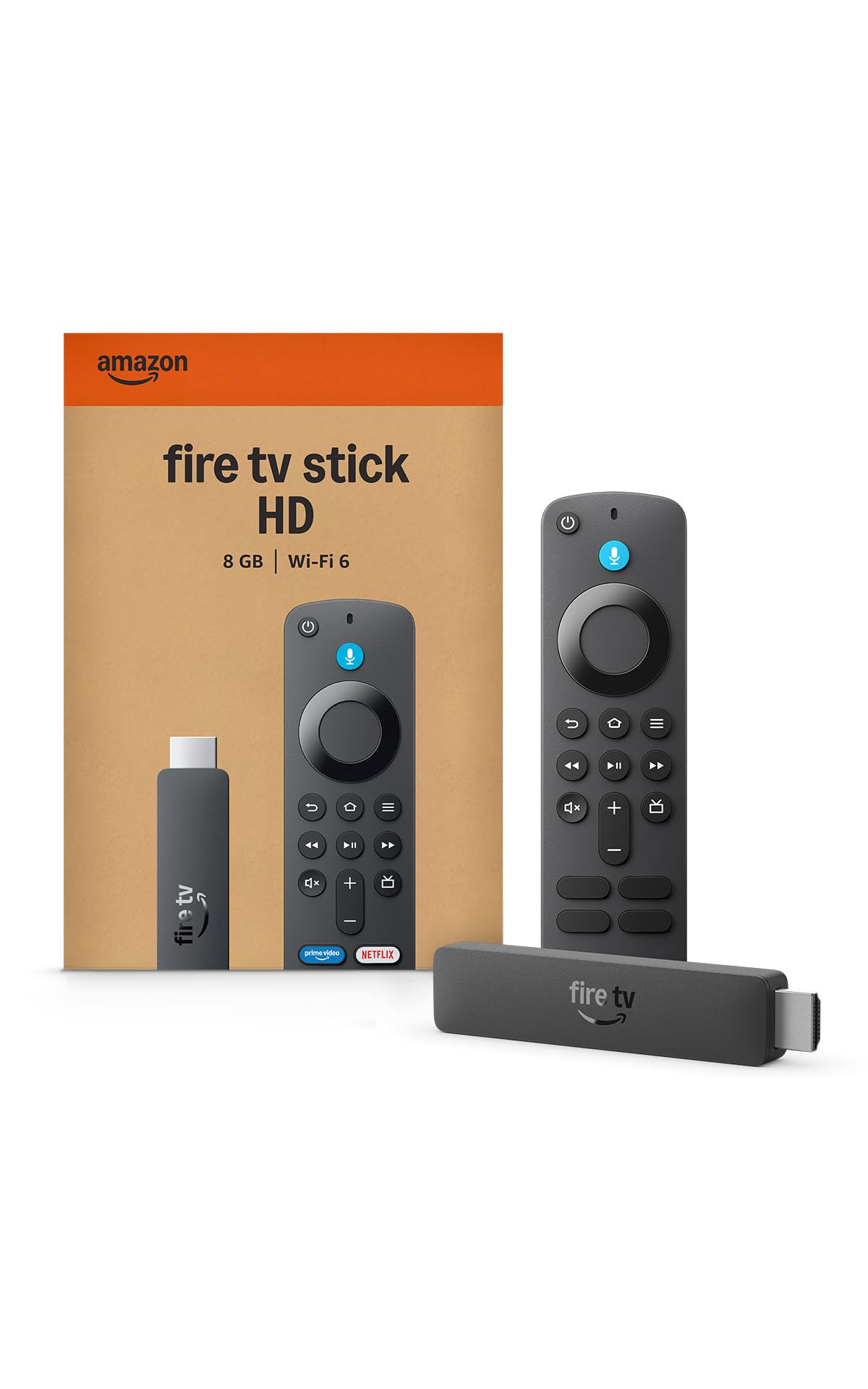
Amazon Fire TV Stick HD (2026)
- Least expensive current Fire TV model
- Faster and more compact than the previous HD stick
- Matches resolution for most TVs bought before 2018
- Not worth buying for a 4K television
- Lower RAM than the Plus and Max tiers
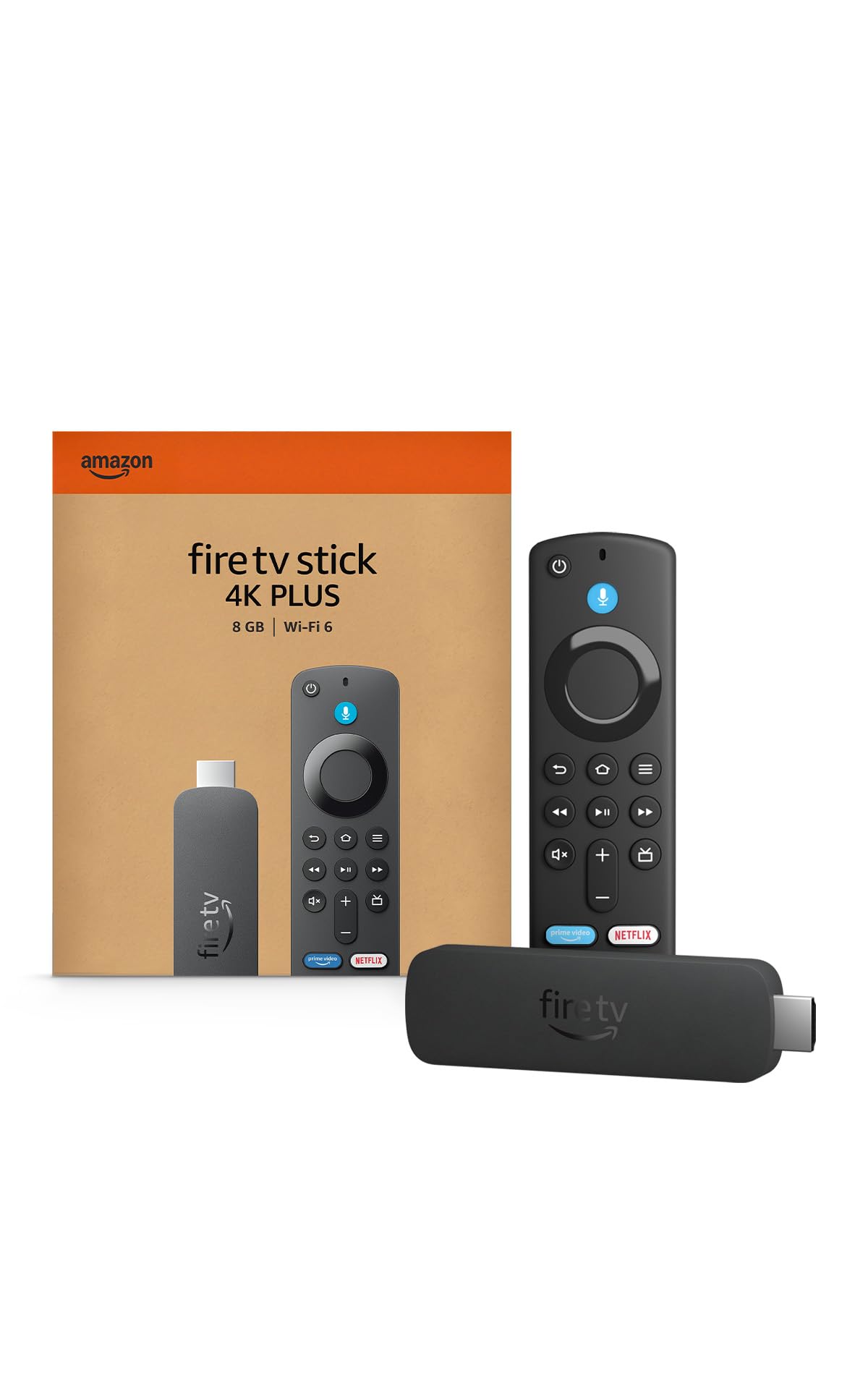
Amazon Fire TV Stick 4K Plus
- Dolby Vision and Dolby Atmos support
- Wi-Fi 6 for a more stable connection
- Sensible middle price point for most 4K households
- Overkill for a non-4K television
- Costs more than the HD model for no benefit on an older TV
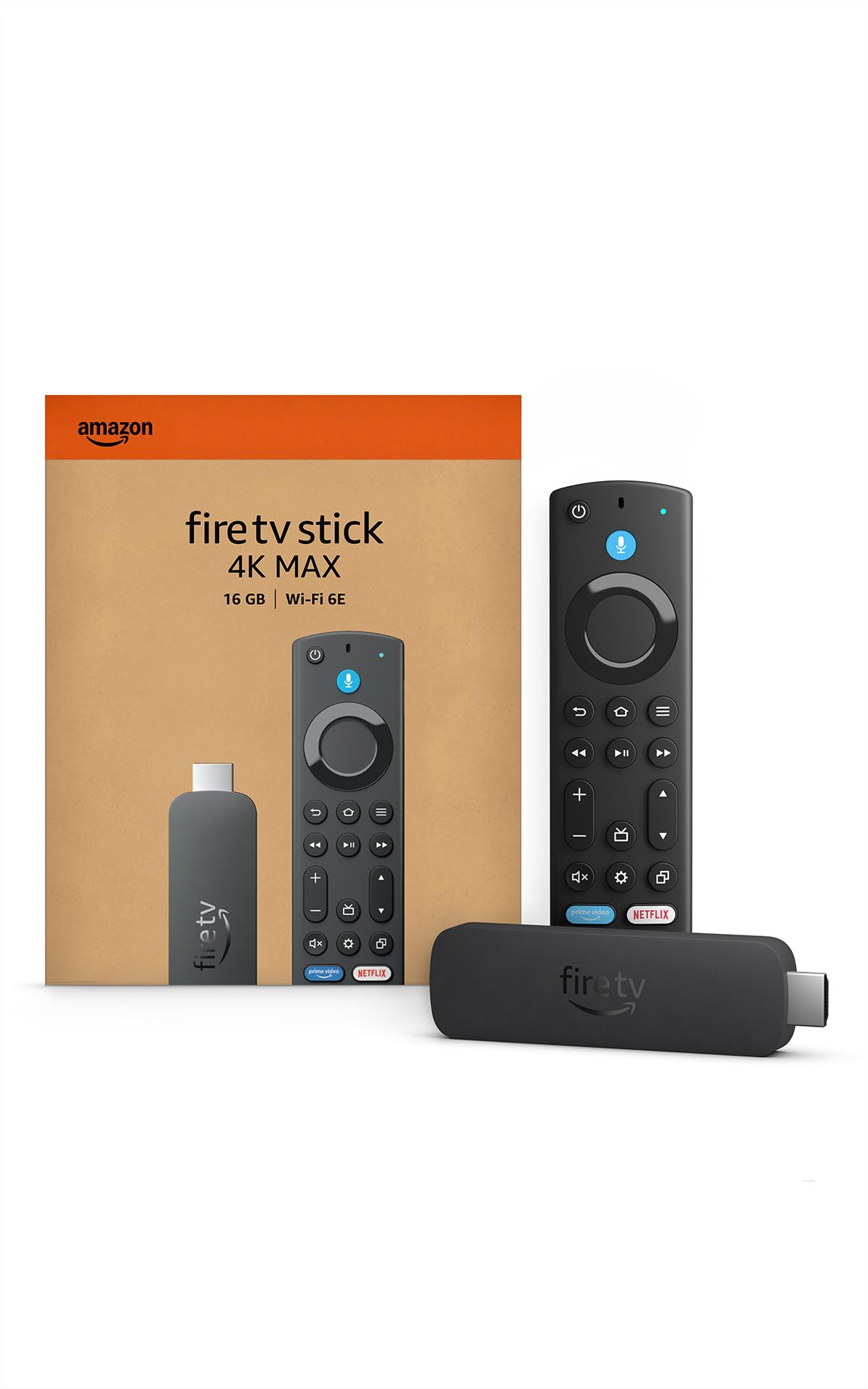
Amazon Fire TV Stick 4K Max
- Fastest processor and most storage of the lineup
- Wi-Fi 6E handles congested networks better
- Documented compatibility with some Xbox game streaming
- Most expensive option — unnecessary for basic streaming
- Same on-screen app layout as the cheaper models
The Short Answer
Match the device to the TV, not the other way around. For a standard 1080p television, the Amazon Fire TV Stick HD is the right call — it's the least expensive current model and won't push resolution the screen can't display anyway. For a 4K television, the Fire TV Stick 4K Plus is the sensible middle option. Skip the top-tier 4K Max unless a household actually games on the TV or streams in a room with a lot of other Wi-Fi traffic.
Why a Streaming Stick Beats "Just Use the Smart TV Apps"
Many newer televisions have streaming apps built in, but the software on the TV itself is often slower, gets fewer updates, and buries settings in a different menu system than what's documented online — which makes phone support calls harder, not easier. A separate streaming stick is a known, consistent interface that stays the same regardless of what TV it's plugged into, which matters if a TV ever gets replaced or if a caregiver is trying to walk someone through it over the phone using instructions written for a specific device.
Picking the Right Model — This Is Where People Overspend
Amazon currently sells four Fire TV stick models, and the differences are not marketing fluff:
- Fire TV Stick HD: The 2026 redesign is meaningfully faster than the previous HD stick and uses USB-C. Right choice for any 1080p (non-4K) television — a common case for TVs bought before roughly 2018.
- Fire TV Stick 4K Plus: More RAM, Dolby Vision and Atmos support, Wi-Fi 6. The sensible default for a 4K TV bought in the last several years.
- Fire TV Stick 4K Max: Faster processor, more storage, Wi-Fi 6E. Worth the extra cost mainly for gaming or a household with heavy simultaneous Wi-Fi use — overkill for someone who just wants to watch shows.
Buying the priciest option "to be safe" doesn't make the on-screen experience simpler — the app layout and remote are nearly identical across all four. The thing that actually determines ease of use is the setup, not the model tier.
Setup Choices That Determine Whether This Stays Simple
Turn on voice search from day one
The included remote has a microphone button — holding it and saying a show or actor's name avoids the on-screen keyboard entirely, which is the single most frustrating part of streaming devices for anyone who isn't a fast typist. This is worth demonstrating in person at least once rather than assuming it'll be discovered.
Delete or hide apps that won't get used
The home screen can be reorganized to show only two or three services actually being paid for (Netflix, or whatever the household subscribes to) — a cluttered row of a dozen icons for services nobody uses is a common source of "I don't know which button to press."
Write down the actual remote, not a generic one
If a family member is creating a written cheat sheet, it should show a photo of the specific remote that shipped with the device — Amazon has changed the remote design across generations, and a generic downloaded diagram often doesn't match.
When a Streaming Stick Isn't the Fix
If the real problem is finding the remote in the first place, or pressing tiny buttons accurately, a streaming stick doesn't solve that — see our guide to large-button TV remotes for that specific issue, and consider whether the existing cable box remote might just need replacing rather than adding an entirely separate streaming ecosystem. And if hearing dialogue clearly is the actual complaint rather than navigating menus, a streaming stick won't help — that calls for a dedicated TV listening device instead.
How to Choose Based on Who Provides the Tech Support
The model tier matters far less than an honest answer to one question: when something goes wrong, who fixes it? If a family member lives nearby and can drop by, almost any of these sticks is fine. If support happens over the phone from another state, favor whichever device that helper already owns and knows — walking someone through a menu you can picture in your own head is far easier than reading from a manual. A household where the streaming stick and the helper's own device are the same brand turns most troubleshooting into "press the same button I press."
Tech comfort points the same way. For someone who has never used an app-based interface, the number of choices on the home screen is the real obstacle, not the processor. Plan to spend the first sitting removing everything they won't use rather than showing off everything the device can do.
Setup and Getting Started
Plan for a family member to do the entire initial setup — connecting to Wi-Fi, signing in to the Amazon account, and installing the two or three streaming apps the household actually pays for — before the senior ever picks up the remote. The setup screens ask for typed passwords and account details that are genuinely tedious on a TV, and getting past them once, in advance, spares the new user the most frustrating part.
Once it's running, sit down together and do the three things that will come up daily: turning the TV to the right input, opening one app, and using the voice button to find a show. Everything else can wait. If both the TV remote and the streaming remote have to be used — one for power and volume, one for navigation — that two-remote dance is worth solving up front. Many Fire TV remotes can be programmed to control the TV's own power and volume, which removes an entire remote from the coffee table.
Common Mistakes to Avoid
- Buying the most expensive model "to be safe." The costly tiers don't make the on-screen experience any simpler — the menus and remote are nearly identical. That money is better spent getting the TV input setup right than on a faster stick.
- Leaving a dozen unused apps on the home screen. Every extra icon is one more chance to open the wrong thing. Trim it to what's actually paid for.
- Signing up for free trials during setup and forgetting them. These quietly convert to paid subscriptions. Note any trial's cancellation date, or skip trials entirely.
- Assuming the stick replaces live local news. If someone watches the local evening news or specific live channels, confirm how they'll get those before removing cable, not after.
- Not labeling the TV input. If the picture is ever lost, the culprit is almost always the TV being on the wrong input. A small note taped near the remote — "press Input, choose HDMI 2" — resolves the most common panicked phone call.
Accessibility Settings Worth Turning On
Fire TV includes accessibility options that go unnoticed because they're tucked away in settings, but two are worth enabling from the start. Closed captions can be turned on system-wide and their text size increased, which helps anyone who finds fast dialogue hard to follow — useful even for people who don't consider themselves hard of hearing. There's also a screen-reader mode and a high-contrast text option for anyone with significant vision loss. Turn these on during the family setup session rather than expecting them to be found later. If clearer dialogue is the real goal, captions help, but a dedicated TV listening device addresses volume directly.
Frequently Asked Questions
Does a streaming stick replace cable or satellite TV?
Not by itself — it adds access to subscription apps like Netflix, Prime Video, or Hulu. Local news and live TV without a separate subscription generally still require an antenna or a live-TV streaming service, which is a separate decision from which stick to buy.
Will this work with an older television that isn't a "smart TV"?
Yes — that's actually the ideal use case. Any TV with an HDMI port can use a Fire TV Stick regardless of whether it has built-in smart features, which makes an older, simpler TV plus a streaming stick a genuinely good combination: familiar TV, modern apps.
Do these devices update themselves, or will menus keep changing unexpectedly?
They update automatically over Wi-Fi, and Amazon does periodically adjust the home screen layout. This is mildly annoying but unavoidable across any streaming platform — writing a simple cheat sheet with photos, rather than memorizing exact button sequences, holds up better across these updates.
What is an "input" and why does the picture sometimes disappear?
A TV has several ports, called inputs, and it can only show one at a time. The streaming stick lives on one of them — often labeled HDMI 1, HDMI 2, and so on. If someone presses the wrong button and the screen goes black or shows a different source, the fix is almost always pressing the TV remote's "Input" or "Source" button and choosing the right HDMI. Writing that one step down solves most "the TV broke" calls.
Is there a monthly fee just for the streaming stick itself?
No. The device is a one-time purchase. What costs money are the streaming services you choose to subscribe to, like Netflix, and any live-TV service. It's worth adding up those subscriptions before cutting cable, since several streaming apps together can cost as much as a cable bill.
Can one streaming stick be moved between TVs?
Yes — it's about the size of a pack of gum and unplugs from the HDMI port easily, so it can travel to a second home or a hotel with an HDMI-equipped TV. It will simply need the new location's Wi-Fi password to get going.
Does the person need an Amazon Prime membership to use a Fire TV Stick?
No. A free Amazon account is required to set it up, but Prime is not — the device works fine for Netflix, YouTube, and other apps without any Prime subscription. Prime only adds access to Prime Video's own included catalog.
Check price on AmazonAmazon Fire TV Stick HD (2026)
The Bottom Line
Buy the Fire TV Stick HD for a standard non-4K television, the 4K Plus for a newer 4K set, and skip the 4K Max unless gaming or heavy Wi-Fi congestion is a real factor. The bigger win isn't the hardware tier — it's turning on voice search and trimming the home screen down to the two or three apps that actually get used.


